Google Account Hacked or Locked Out? How to Recover Gmail Safely
A stolen password, a missing verification phone and an unfamiliar account session need different responses. Follow Google's official recovery route, then secure devices, Gmail settings and recovery options without falling for fake support.
Information checked on:
Key takeaways
- If you are locked out, use Google's own recovery flow, not a third-party "Gmail unlock" service.
- A familiar device, browser and location can help Google verify an account recovery request.
- If you can still sign in, review suspicious activity and secure your account before changing unrelated settings.
- Losing your verification phone is different from losing all recovery methods; check saved backup codes, other trusted devices and passkeys.
- After recovery, check Gmail forwarding, filters, signed-in devices and third-party access—not only the password.
- A security hold or changed recovery information may cause delays; nobody can promise instant recovery.
First, identify the problem
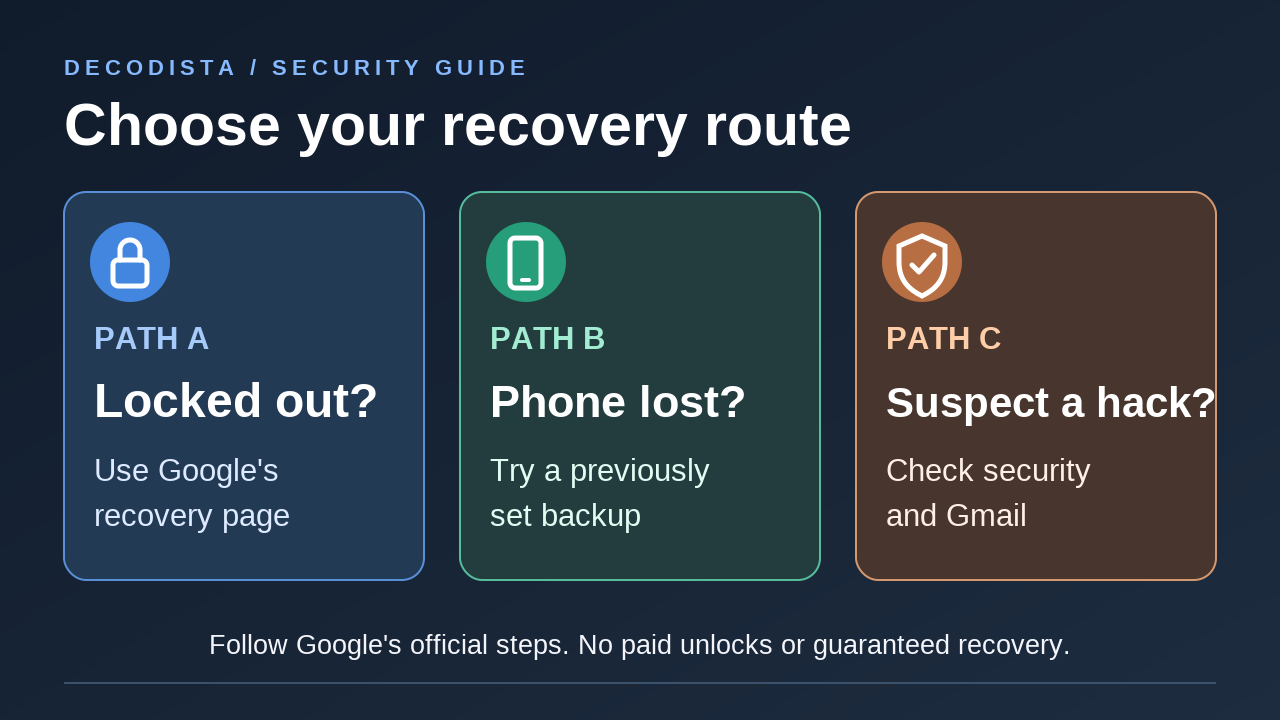
Choose the situation that best describes what you can do right now:
- Can't sign in, or someone changed your password? Go to Path A below and open Google's official Account Recovery page. The process checks account ownership; recovery is not guaranteed.
- Know your password, but lost your verification phone? Go to Path B. Check an already configured backup code, another signed-in device, a security key or a passkey.
- Can still sign in, but suspect someone else accessed the account? Go to Path C. Review security events, protect your sign-in methods and check Gmail for hidden forwarding or filters.
Work or school account? Contact your organisation's administrator. Managed-account recovery may follow different policies.
Visual route map: This DECODISTA illustration summarizes the three choices above; it is not a screenshot of Google's sign-in screens.
A Google Account session may come from a browser or app rather than a separate physical device. Google's hacked-account instructions explain why regaining access and securing an account are separate tasks.
DECODISTA safety note: Never share a password, live verification code, backup code or passkey approval with a supposed recovery agent. If you receive an unexpected security-warning email, open Google's account pages yourself rather than following a suspicious link.
Path A: you cannot sign in
Step 1: use Google's actual recovery page
Open [accounts.google.com/signin/recovery](<https://accounts.google.com/signin/recovery>) in the browser yourself. Enter the email address or other information Google asks for and follow the on-screen steps.
Google may ask about a previous password, verification method or recovery contact. The questions vary by account and risk assessment. You may not see every method in a tutorial, and there is no legitimate shortcut around ownership checks. Google's recovery guide.
Step 2: recover from a familiar environment
Use a phone or computer on which you frequently sign in, in the usual browser, preferably from a place where you normally access the account. Answer as many questions as possible. If a password prompt appears, use a password you actually remember rather than inventing one.
These are Google's own recovery tips, not a guarantee of approval. Google explicitly says that incorrect answers do not automatically end the process and that you may try again if identity could not be verified. Official recovery tips.
Step 3: handle an unavailable recovery email or phone
If a recovery email is inaccessible or an old number is no longer yours, use the other options Google actually displays. Never enter recovery codes on a third-party website. If you still control your phone number, your mobile carrier may be able to transfer it to a replacement SIM; that is different from bypassing Google's security checks. Google's lost-phone guidance.
If no available option works, follow Google's recovery questions as far as possible. Google may not be able to verify ownership, and knowing only a username or an old password does not guarantee access. Recovery guidance.
Step 4: respect a security hold
A message saying a recovery request is delayed or protected by a security hold is not, by itself, proof that someone stole the account. Google says it may delay a recovery claim as a safeguard while it assesses whether the request is legitimate.
Google does not publish one guaranteed recovery time for every situation. Follow the wait and communication instructions shown in your case. Google explains recovery holds.
There is a separate timing distinction: Google says a change to recovery information can take up to seven days to take effect. That is not a promise that every locked account can be recovered in seven days. Google's account-recovery guidance.
Path B: your verification phone is missing
If you know your password but cannot complete 2-Step Verification, check for a backup you set up before losing the phone:
- Another signed-in phone or trusted computer: A Google prompt or an existing trusted sign-in may let you continue.
- Saved Google backup code: Each code can replace one second step only for the Google Account that issued it. A code works once.
- Registered passkey or hardware security key: Use one that is already enrolled and still accessible.
- Another verified phone number: If you added one previously, Google may offer a challenge there. SMS may be limited after an unusual sign-in.
These are possible routes, not guaranteed choices shown to every user. If none is available, use Google's Account Recovery flow. Google's lost-phone and 2-Step Verification guidance and backup-code instructions.
If you lost Google Authenticator rather than your phone number, check whether your entries were synced before treating them as irrecoverable. DECODISTA has a separate new-phone Authenticator guide for the distinction between sync, transfer and individual account recovery.
If the phone was stolen: Sign out of the missing device and change the Google Account password as Google recommends, when access is available. Use the device maker's lost-device tools for the phone itself. A Google password change does not replace carrier-level action on a stolen SIM. Google's lost-phone guidance.
Path C: you still have access, but suspect a hack
If you are signed in on a trusted device, keep that working session available while you review suspicious activity and secure another sign-in method. Signing out your only working session can make recovery harder.
Step 1: examine security alerts
Go to your Google Account → Security & sign-in → Recent security events → Review security events. Check for password changes, recovery-information edits and sign-ins you did not initiate.
If a security event is not yours, Google instructs you to choose No, it wasn't me when that option appears and follow its account-security prompts. Official hacked-account help.
Step 2: review unfamiliar devices and sessions
Under Your devices, choose Manage all devices, review each entry and sign out of sessions you cannot explain.
A Google session can come from a browser, app or service; the same device can appear more than once. Avoid treating the number of sessions as proof of how many people accessed the account. Google's device explanation.
DECODISTA's unknown Google device guide explains when a recent device entry might be legitimate and how to handle multiple same-name sessions.
Step 3: replace a compromised password
If someone else may be using your account, follow Google's security steps to change the Google Account password to a strong, unique one. Where the old password was reused, change it on those other services too.
Do not assume the password reset is a universal kill switch for every device, integration and verification method. Review sessions and connected apps after the change. Google's hacked-account checklist.
Step 4: secure recovery details and sign-in factors
Review the recovery email and phone, 2-Step Verification methods, registered security keys, passkeys and backup codes. Remove methods you do not recognise, while retaining an independent way to sign in.
If a lost phone or suspicious device has a passkey, follow Google's passkey-management route instead of assuming a password change removes it. DECODISTA covers the distinctions in Passkeys vs 2-Step Verification.
Check Gmail for hidden access after recovery
An account can look normal after its password is reset while Gmail settings still deserve review.
Forwarding and filters
In Gmail on a computer, open Settings → See all settings, then check two places:
- Forwarding and POP/IMAP: Look for a forwarding address you do not recognise.
- Filters and Blocked Addresses: Look for rules you did not create that forward, archive or delete messages.
Google says automatic forwarding can send new messages to a verified destination, and filters can forward selected messages. Investigate unfamiliar rules, but do not assume a rule you knowingly configured proves a hack. Gmail forwarding and Gmail filters.
If important email appears missing, review Spam, Trash, All Mail and your relevant clients as well. A missing message by itself does not prove an intruder deleted it.
Connected apps and sensitive services
Review third-party connections in your Google Account. Removing an app's authorised access is not the same action as signing out a device or changing a password. Unfamiliar access deserves attention; legitimate services may need reauthorisation afterward. Google's linked-app guidance.
If you notice unexpected purchases, payment methods or access to another account that uses Gmail for recovery, check those services directly too. Google lists payment and related-account changes among signs to investigate in a hacked-account review. Official guidance.
Watch for fake “Gmail recovery experts”
Google says it does not work with account/password recovery services and that you cannot call Google for consumer account sign-in help. Anyone asking for a one-time code, a backup code, remote-control access or money to unlock your account is not an alternative recovery route. Google Account Recovery.
Be suspicious of:
- Paid promises of guaranteed or instant recovery.
- Requests to screenshot or forward a Google verification code.
- Instructions to install remote-access software to “verify” account ownership.
- A link that resembles
accounts.google.combut belongs to a different website. - People claiming that a temporary security hold can always be bypassed.
For red flags involving callers and remote access, use DECODISTA's fake tech-support scam guide.
Final account-security checklist
Once you are safely signed in, this is DECODISTA's recommended checklist, not a claim that our team has inspected the account:
- Verify ownership and sign in through Google's official account pages.
- Review recent security events and respond to activity that was not yours.
- Replace any compromised or reused password.
- Sign out unknown devices and sessions, keeping a safe recovery method available.
- Review recovery email, recovery phone, 2-Step Verification and passkeys.
- Check Gmail forwarding, filters and unexpected mailbox rules.
- Review third-party app access and payment information.
- Save appropriate backup methods somewhere you can reach without a single phone.
- Notify affected contacts or services if you have evidence of impersonation or other misuse.
- Recheck the account later for unfamiliar activity rather than assuming one password change settled every risk.
You can run Google's Security Checkup for its current recommendations. It cannot guarantee that no information was previously seen or copied by someone else.
Related guides for your next step
Use the guide that matches the specific issue you still need to solve:
- An unfamiliar device or session? Understand Google's device and session list before assuming every entry is a separate intruder.
- Authenticator codes missing after switching phones? Check sync, transfer and recovery options without deleting your remaining working codes.
- Unknown third-party app connection? Review and remove Google Account access safely, keeping legitimate sign-ins in mind.
- A passkey or verification method on a lost device? Understand passkeys versus 2-Step Verification before removing a working fallback.
Bottom line: Account recovery and account security are separate stages. Get back in through Google's own process, then verify devices, mail settings, connected apps and recovery methods. No article or paid service can guarantee that Google will restore a particular account.
FAQ
Can I recover Gmail without my old phone?
Possibly. Google may offer a backup code, another phone you signed in on, an existing passkey, a backup phone number or an account-recovery process. Which options appear depends on your account and past setup. None guarantees success. See Google's 2-Step Verification help.
Can Google Support unlock my Gmail account by phone?
Google's consumer account-recovery guidance says you cannot call Google to get help signing in and that it does not work with paid password-recovery services. Use the official recovery page. This guidance is not a statement about support arrangements for managed Workspace accounts, where an administrator may assist.
Will a password change sign out every device and app?
Do not assume that it does. Google documents exceptions to its password-change sign-out behavior. Review actual device sessions and third-party connections separately; see Google's device help and DECODISTA's account-session guide.
What if Google says it cannot verify that I own the account?
Google's recovery guidance allows you to try again. Use the same familiar device, browser and location if possible, and answer the questions rather than guessing a new recovery shortcut. A new attempt does not guarantee approval.
How long does Google account recovery take?
There is no universal completion time. A security hold may delay a recovery request, and Google says recovery-information changes can take up to seven days to take effect. Follow the instructions and timing displayed by Google for your case rather than a promised "instant unlock."
Sources and verification
Information checked on 19 November 2026 (UTC) against Google's official Account Recovery, hacked-account, security-hold, 2-Step Verification, device-management, backup-code and Gmail Help documentation. Primary references:
- Recover a Google Account or Gmail
- Tips to complete recovery
- Secure a hacked Google Account
- 2-Step Verification recovery options
- Why a recovery request is delayed
- See devices with account access
- Gmail forwarding
- Gmail filters This is a documentation-based guide. DECODISTA did not access a reader's account, run a real account-recovery attempt, capture live Google account screens or verify any individual recovery outcome. The route-map artwork is an original editorial illustration, not a Google interface screenshot. Menu labels and recovery prompts may change, and not all options appear on every account.