Google Photos Free Up Space: What It Deletes, What Stays, and How to Get Photos Back
Google Photos Free up space removes backed-up copies from your phone, not from your cloud library. Here’s what disappears, what stays, and how to get local copies back.
Key takeaways
- Confirm backup before removing local files.
- Ordinary deletion can affect both device and cloud copies
- Download a cloud photo when you need a local copy again.
- A connected Gallery app can also affect cloud photos.
- Undo backup removes cloud copies of current-device items and disables that device’s backup.
What “Free up space” actually does
A local copy is a file on your phone. A cloud copy is saved to your Google Account through backup. Seeing a picture in the Google Photos app alone does not prove it is backed up: the app also displays local files. [3]
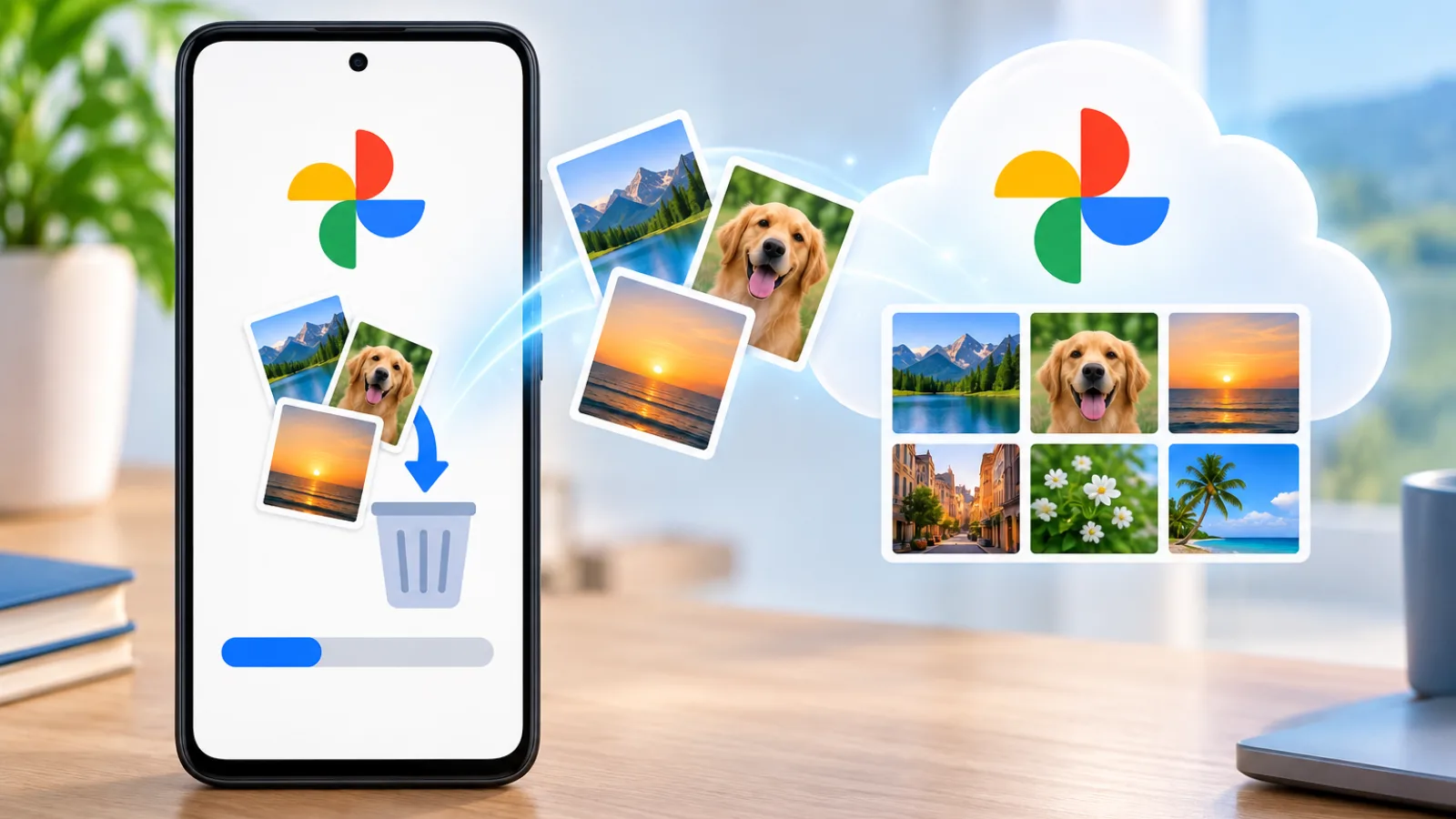
Free up space targets backed-up device copies. Google’s Android route is your profile picture or initial → Free up space on this device. Review the estimate before confirming. [1]
What disappears from your phone
The removed files no longer occupy local storage. They may disappear from your built-in Gallery, and you should not expect offline access to them. Connected galleries are an exception to a simple “Gallery means local” rule; see below. [1][6]
What stays in Google Photos
Your backed-up items remain accessible in the Google Photos app and at photos.google.com. You can still edit, share, and manage them while signed in and online. [1]
Backup is not protection against every later deletion. If you delete a backed-up item in Google Photos, Google says it is also removed from devices with Google Photos installed and backup turned on. Ordinary deletion is therefore different from removing only the device copy. [2]
Free up space vs Delete from device vs Delete
In this table, “Google Photos” means the cloud library, not everything visible in the phone app.
| Action | Removes from phone? | Removes from Google Photos? | Frees phone storage? | Frees Google Account storage? |
|---|---|---|---|---|
| Free up space | Eligible backed-up copies | No | Yes | No |
| Delete from device | Selected local item | No; existing backup stays | Yes, when local data is removed | No |
| Ordinary Delete/Trash in Google Photos | Yes; device caveats below | Yes, if backed up | Can | Can, for quota-counting items |
| Undo backup | No | Current-device items | No | Can, for quota-counting items |
| Manage storage: delete selected Photos items | Can, through deletion behavior | Yes | Can | Can, for quota-counting items |
Sources: [1][2][4][6].
Ordinary app deletion also affects other devices with backup enabled. Google notes that removable-memory-card copies may remain; do not assume every copy everywhere disappears. [2]
For one local item, select it in Google Photos, then use More → Delete from device. Verify its backup first: removing a device file does not create a backup. [2][3]
Why some recent photos may stay on the phone
Google says items under 30 days old may remain locally. This is a possibility, not a guaranteed retention window. [1]
Does Free up space reduce Google storage?
No. Manage storage is the separate cloud-cleanup tool. Google Account storage is shared across Photos, Drive, and Gmail. [3][4]
On Android, open your profile menu → Photos settings → Backup → Manage storage. Review the suggested categories, select unwanted items, and use Move to trash. Merely opening the tool deletes nothing. [4]
This removes selected photos from the cloud library, so do not use it as a substitute for local cleanup. Some older or otherwise exempt backups consume no account storage; deleting those will not increase your allowance. Supervised and K–12 school accounts do not have access to this storage-management tool. [4]
How to get a photo back onto your phone
If the photo is still in your cloud library, download it:
- Open Google Photos on your Android phone or tablet.
- Select the photo or video.
- Tap More → Download.
Google says Download does not appear when the item is already on your device. A missing button therefore does not automatically mean the photo is lost. [5]
Downloading puts a copy back into device storage. Google also notes that your operating system may give the downloaded file a new timestamp; the photo or video’s metadata remains available through file details. A file’s download date and the picture’s capture date are not necessarily the same. [5]
What if the photo is missing from Google Photos too?
Work through these checks before assuming it is gone:
- Check the Google Account. Use the profile menu to confirm the email address, then check that account at photos.google.com. A different account can make a library appear incomplete.
- Check backup status. Open the profile menu. For an individual item still on your phone, open More → About, then inspect Details for its backup status. “Backup complete” does not establish that every folder was selected for backup.
- Look beyond the main view. Check Collections → Archive, search other dates, and inspect Collections → On this device for files from other apps.
- Check Trash. In Google Photos, open Collections → Trash, touch and hold the item, then tap Restore. Also check your phone Gallery’s own trash, if available; its behavior depends on the device. [1][3][7][8]
Google’s current documentation specifies 30 days in Google Photos Trash, including backed-up items. Its deletion guide also specifies 30 days for unbacked-up items deleted on Android 11 and later. Do not rely on older advice promising 60 days. [2][7]
Emptying Trash or permanently deleting an item removes the recovery option sooner. Google says permanently deleted content cannot be restored; Google Takeout cannot retrieve it either. If another app deleted a file before backup finished, there may never have been a cloud copy to download. [7][8]
Important warning about connected default Gallery apps
After Free up space, a picture may disappear from Samsung Gallery because its local copy was removed. That is not, by itself, proof that its Google Photos backup disappeared. Check the cloud library before taking further action. [1]
Separately, some default Gallery apps can connect to Google Photos. Google lists compatible devices from brands including Xiaomi, OPPO, OnePlus, and Realme, with Android 11 or later and the latest Photos app. This documented integration should not be assumed to apply to every Samsung device. [6]
With Gallery access enabled, deleting there can also delete the backed-up Google Photos item. A connected Gallery can display cloud photos, so visibility there does not necessarily prove a local file exists. [6]
To review access, Google documents Photos settings → Apps and devices → Google Photos access. Select the Gallery app to remove access if desired. Check your actual device’s connection and deletion prompts rather than applying one manufacturer’s behavior to every Android phone. [6]
Free up space vs Undo backup
These serve opposite goals:
- Free up space: keep the backup; remove eligible phone copies.
- Undo backup: remove current-device photos and videos from Google Photos, keep them locally, and turn backup off on that device. [1][2]
Undo backup does not download missing files. It is not the way to bring cloud-only pictures back to your phone. Other devices with backup enabled can upload affected items again. [2][5]
For the separate cloud-removal workflow, read Google Photos on Android: Undo Backup Without Deleting Phone Photos.
When you should use Free up space
Consider it when your phone is nearly full, you have verified backup in the intended account, and cloud access suits how you use your photos.
Before proceeding, open a few important pictures on the web. For irreplaceable photos, keeping an additional independent copy is a sensible precaution.
When you should NOT use it yet
Wait if backup is unfinished, you are unsure which account holds your pictures, or you need local files for travel, unreliable connections, or offline use in another Gallery app.
Decide which photos you must keep available without internet before running a bulk cleanup.
FAQ
Does Google Photos Free up space delete photos permanently?
It removes device copies, not the backed-up library items. Ordinary Trash or permanent deletion is a different action. [1][2]
Can I get my photos back on my phone?
Yes, if they remain in your cloud library: open an item and select More → Download. If it is in Trash instead, restore it first. [5][7]
Why are my photos gone from Samsung Gallery?
After Free up space, the local files may have been removed. Check the same account on the Google Photos website, then download the pictures you need locally. This is separate from the cloud-deletion behavior of a connected default Gallery app described above. [1][5][6][8]
Does Free up space reduce my Google One storage?
No. Account cleanup is separate under Manage storage. [4]
Can I use my photos offline afterward?
Download the ones you need first. [5]
Is Free up space the same as Undo backup?
No. Undo backup keeps device files and removes their cloud backups. [2]
Why did some photos stay on my phone?
Items under 30 days old may be retained. [1]
Sources & Verification
Verified against official Google Help documentation on September 23, 2026. This article is documentation-based; it does not claim hands-on testing. Device-specific Gallery behavior can differ.
- Free up space on your device — Android
- Delete photos & videos — Android
- Back up photos & videos — Android
- Manage your storage — Android
- Download photos or videos to your device — Android
- Give your device photos access to Google Photos
- Restore recently deleted photos & videos — Android
- Find lost photos & videos — Android