Google Photos on Android: Undo Backup Without Deleting Phone Photos
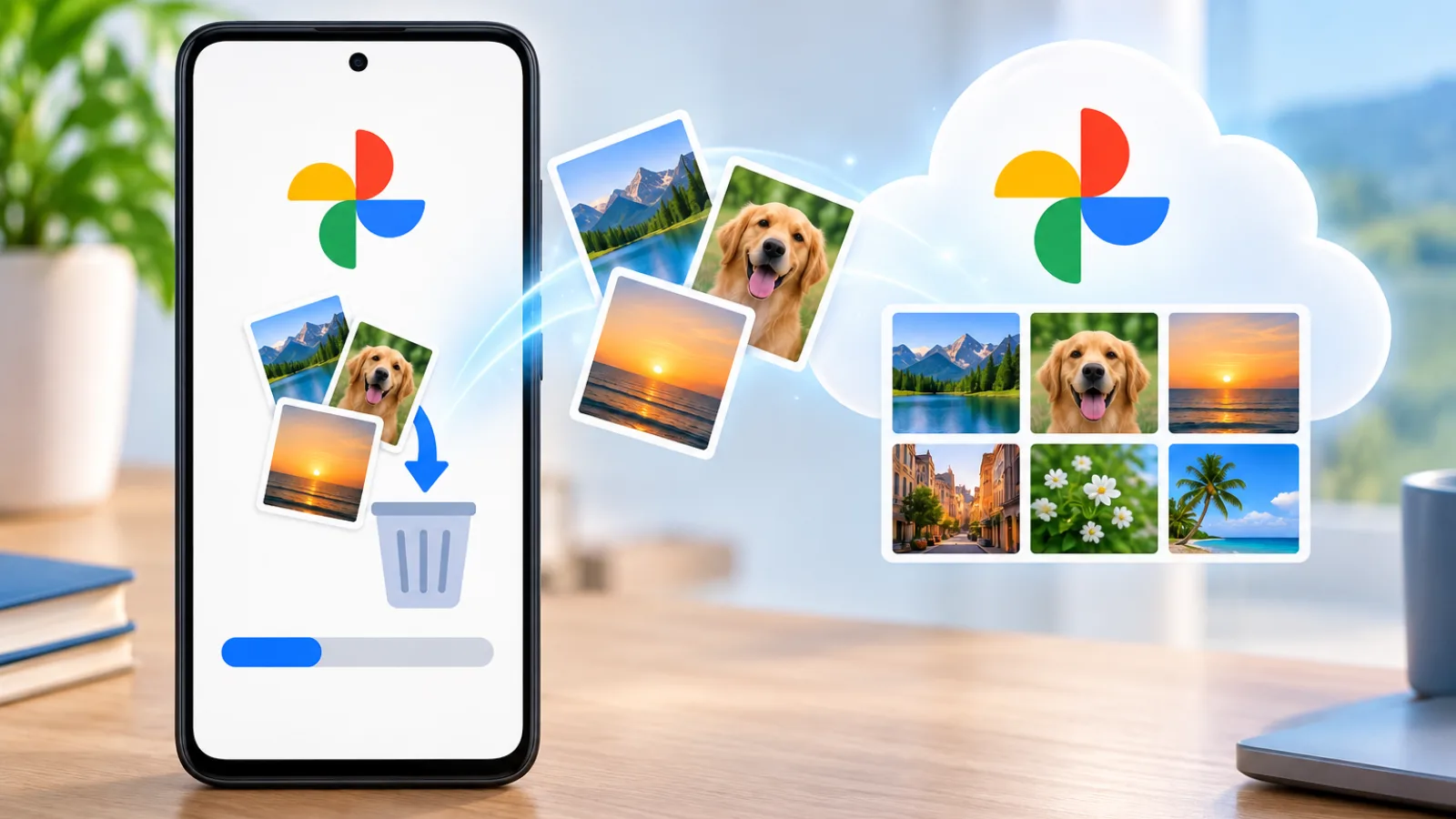
Undo backup can remove Google Photos cloud copies while preserving files on your Android device. Check real local files, make an independent copy and review other devices before changing your backup.
Information checked on:

This guide covers Android. Do not apply its steps or device-storage assumptions to an iPhone or iPad.
Key takeaways
- Decide whether you need space in your Google Account or on your phone.
- Check actual files, not just thumbnails.
- Protect important pictures before any deletion or removal.
- Review other devices and sharing settings before changing cloud storage.
- Afterward, check the phone and the cloud separately.
Before you remove anything
The steps below describe Google’s documented controls. The independent-copy checks are DECODISTA’s precautions; they are not a claim that every Android device has been tested.
Four actions with very different consequences
Read the confirmation screen as well as the action name.
| Action | Google Photos cloud copy | Copy on this Android device | Appropriate goal |
|---|---|---|---|
| Delete / Trash in Google Photos | Selected backed-up item is deleted from the library | Deleted too; deletion can reach other devices with Backup on | Remove an unwanted item; unsuitable as a shortcut for keeping phone photos |
| Delete from device | Existing backed-up copy is kept | Selected local file is removed | Remove a particular phone copy after verifying another copy |
| Free up space | Backed-up items remain available in Google Photos | Eligible backed-up local copies are removed | Recover phone storage |
| Undo backup | Copies matching items on this device are removed | Files are kept | Reverse this device’s backup |
The deletion and Undo distinctions follow Google’s Android deletion guide. The device-only options are documented in Google’s gallery integration guide and Free up space guide.
Free up space works towards the opposite storage goal from this article. Google says the removed phone files remain viewable through its online library, but are no longer available as those local copies for offline viewing. Recent items may be left on the phone. Google’s Free up space explanation
Cloud space or phone space?
| What you want | Start here |
|---|---|
| Keep phone originals and reduce their Google Photos backup | Complete the safety checks, then consider Undo backup |
| Keep the cloud collection and reduce phone storage | Consider Free up space only after verifying backups and an independent copy |
| Stop automatic uploads without removing existing pictures | Review the Backup switch |
| Remove only a few cloud pictures | Review Google’s separate selected-item instructions; do not run a bulk action by mistake |
Backup off is a setting, not a deletion command. It stops automatic backup from that device; it does not itself remove earlier cloud uploads. Backup on enables automatic saving, including the device folders selected for backup. Google documents the switch under Photos settings → Backup. Google’s Android backup guide
How to confirm a real local copy exists
Seeing a picture inside Google Photos proves that the app can display it. It does not tell you where the file is stored.
Even a phone’s separate gallery can show cloud pictures when it is connected to Google Photos. Google also warns that deleting through a connected gallery can affect cloud copies. Google’s gallery-access documentation
Use this practical check for ordinary photos and videos:
- Find the file in device storage. Use your file manager to inspect the actual camera or picture folder, such as DCIM/Camera. Look for a filename, folder location and file size.
- Open that file while offline. Check the full picture and play the video. Treat a thumbnail or a cached preview as insufficient evidence.
- Copy, rather than move, the files to independent storage. Keep the phone originals in place.
- Check the destination. Open the copied files there. For a large collection, compare file counts and sizes, inspect samples from different dates and folders, and individually check irreplaceable items.
To check the cloud backup separately, open the item in Google Photos and use More → About → Details. Google says a backed-up item shows its backup status and size. This checks the upload, not whether a phone file still exists. Google’s backup-status instructions
Google documents USB file transfer to supported computers. Choose a transfer method appropriate to your devices; this guide does not assume every computer uses the same steps. Google’s Android file-transfer guide
If a picture exists only online, preserve it before considering deletion. Google’s computer instructions let you select an item at Google Photos and download it. Open the downloaded file to verify it; a successful-looking download notification is not the final check. Google’s download guide
Locked Folder requires a separate check. Its contents are not exposed to other photo apps, so a normal camera-folder copy is not evidence that you protected those items. If you cannot independently preserve important Locked Folder content, pause before the bulk operation. Google’s Locked Folder guide
Pre-action safety checklist
Review the albums, sharing and Locked Folder section below before following the steps. Proceed only when you can answer yes to these questions:
- Right account? Have you checked the account shown in Google Photos and its Backup settings?
- Right goal? Are you trying to reduce cloud storage, rather than phone storage?
- Files verified? Have you located and opened the phone files you intend to keep?
- Independent copy verified? Is important content also readable somewhere outside this phone’s Photos library?
- Full scope reviewed? Have you checked other device folders and Locked Folder, not only the camera roll?
- Other devices checked? Have you reviewed phones and tablets using the same account and protected their important files?
- Sharing reviewed? Have you checked whether anyone relies on albums or Partner Sharing?
- Future protection planned? Do you know how you will protect new photos if automatic backup stays off?
DECODISTA recommends turning Backup off on other devices whose copies you want to preserve before changing the cloud library. If you cannot inspect a relevant device, postpone the change rather than assuming its files are safe.
How to use Undo backup on Android
After the safety checks:
- Open Google Photos and verify the selected account.
- Open Profile picture → Photos settings → Backup.
- Scroll to Undo backup.
- Read the disclosure and tick its acknowledgement only if the scope matches your intention.
- Tap Delete Google Photos backup.
These labels follow Google’s current Android instructions. If your screen differs, stop at the confirmation stage and check the current help instead of guessing.
What happens after Undo backup?
Backup switches off automatically on that device. Google’s Undo backup instructions
Now check the two locations independently. Use the file manager for phone files and a browser signed in to the same account for the cloud library. Do not use an unchanged photo grid as your only test.
Plan a replacement backup routine before relying on the phone as the home for future pictures. A phone copy that survives this operation can still be lost later through damage, theft or another deletion.
What happens on other devices?
Another device using the same account with Backup on may upload the photos again. Google’s multi-device warning
Make a short inventory: this phone, an old phone, a tablet and any other device that holds copies. Record which account each uses and whether automatic backup is enabled.
Do not interpret the documented result on the phone running Undo backup as a guarantee about every local copy elsewhere. Verify each device you depend on, including one that has been offline.
What if you enable Backup again?
The photos can be uploaded again when Backup is re-enabled. Google’s Undo backup guidance
Do not switch it on merely to dismiss a reminder. First decide whether you want the pictures back in Google Photos and review the selected account and folders.
A replacement backup plan could mean a regular verified computer copy or another arrangement you have checked. Simply leaving automatic backup off without making another copy does not protect future photos.
Albums, shared items and Locked Folder
Undo backup also removes affected items from albums, shared albums, search and memories. Device folders and Locked Folder are included. Google’s stated scope
Before proceeding, note any collections you care about. Keeping image files does not, by itself, preserve the arrangement of a cloud album.
Partner Sharing needs a separate review
Google warns that partner auto-save may cause re-upload. Undo backup guidance
Its Partner Sharing guide also says a partner’s previously saved copies survive changes to your version. Removing your cloud copy is therefore not a promise to erase someone else’s saved copy. Review both accounts with the other person before relying on the result. Google’s Partner Sharing guide
Do not reset the app to fix this
Google warns that unbacked-up Locked Folder items can be lost when Photos is uninstalled, its app data is cleared or the device is reset. It also says locally stored Locked Folder items are not included in ordinary device-transfer routes when backup is off. Keep this limitation in mind when verifying your independent copy. Google’s Locked Folder precautions
What if Undo backup is missing?
Check that you are using the Android Google Photos app and the intended account. Look through the full Backup settings page, and check the official app listing for an update.
If the option still does not appear, pause and consult Google’s current Android help. No universal minimum app version or fix for every missing-option case was established in this review.
Do not substitute Delete, Delete from device or Free up space. Do not clear app data or turn Backup on solely to make the option appear.
Google’s selected-item removal procedure is a separate route. If that better matches your goal, read its full instructions—including the other-device and later-backup warnings—before acting. Start with disposable content after verifying independent copies.
Verification checklist after the change
Before making any further storage changes:
- Open phone files directly. Recheck the pictures and videos you intend to keep.
- Check the cloud account in a browser. Confirm which items remain, rather than judging by a phone thumbnail.
- Inspect Backup settings. Review this phone and every relevant second device.
- Check sharing and important collections. Look for unintended changes and copies held elsewhere.
- Keep the independent copy. Do not delete it because the first check looked successful.
- Check storage separately. Compare Google Account usage with the phone’s storage reading.
- Stop if anything is unexpected. Avoid further deletion, app resets or unreviewed sync prompts while investigating.
Not every cloud photo consumes quota. Google lists exceptions, including certain older uploads and some partner-shared items. Removing those items may not reduce the displayed storage usage. Google’s storage guide
A proposed disposable-photo test
This workflow has not been performed by DECODISTA for this article. It is a preparation plan for readers or editors who want to observe their own setup.
Use a spare Android device or a properly isolated test environment containing no important media. A spare Google account on a phone full of family pictures is not enough isolation.
- Create two clearly labelled throwaway photos and a short video.
- Copy them to independent storage and verify the copies.
- Back up the test items to the test Google account, then confirm their backup status and browser visibility.
- For a cloud-only control, upload a different throwaway image from a computer to the test account. Do not copy that image to the phone.
- Run the documented Undo backup steps only after reviewing the full test-device scope.
- Compare the device files, cloud library and Backup setting afterward, including what happened to the cloud-only control.
- If testing re-upload, enable Backup only in this disposable environment and record what you observe.
For comparison, test Delete, Delete from device and Free up space in separate rounds with fresh expendable copies. Do not run them successively on the same only copy and assume you can identify which action caused the result.
Google says Free up space may retain recent items. A new test photo remaining on the phone does not establish that the feature never removes files. Google’s Free up space guide
A test result applies to the recorded account, device and app version. It does not certify every Android phone.
Common mistakes
- Confusing the storage counters. Check whether the warning concerns your Google Account or the phone.
- Treating Backup off as a complete safeguard against deletion. Read the specific action’s disclosure.
- Trusting thumbnails as originals. Locate the files and verify the independent copy.
- Testing on important media. Use a separate, disposable environment.
- Approving follow-up sync prompts without reading them. Pause if their effect is unclear.
- Emptying Trash to finish the job. Preserve recovery options while checking the outcome.
FAQ
Does turning Backup off delete photos already uploaded?
No. Treat the switch as control over automatic uploading, not cloud cleanup. Check the cloud library separately before deciding on any removal.
Will this free storage on my Android phone?
That is the goal of Free up space or device-only removal. If your priority is retaining phone files, do not choose an action whose confirmation says it will remove them.
What if I already used Free up space?
Recheck the files from the beginning. Google Photos can still display backed-up pictures after their phone copies have been removed. Download and verify any independent copies you need before considering cloud deletion. Google’s Free up space guide, download instructions
Can I rely on Trash to reverse a mistake?
No. Check Trash promptly if something is missing, but do not use it as your backup plan. Google’s current restore guide describes a 30-day Trash period and says permanently deleted items cannot be restored. Locked Folder items cannot be moved to Trash. Do not assume every removal in this workflow has the same recovery path. Google’s restore guide, Locked Folder restrictions
Why is my Google storage still nearly full?
Check which account and storage category you are viewing. Google Account storage includes other services such as Gmail and Drive, and some photos do not count towards the total. Avoid deleting more pictures merely because a counter has not changed as expected. Google’s storage guidance
Sources and verification
Official Google documentation was checked on 17 September 2026 (UTC). Links appear beside the relevant explanations.
This is a documentation-based Android guide. No hands-on deletion, multi-device or recovery experiment was performed. The file-verification checks and conservative stopping points are DECODISTA recommendations, not guarantees about an untested device.
Related reading: how iCloud Backup and iCloud Photos differ, and review apps with access to your Google Account.