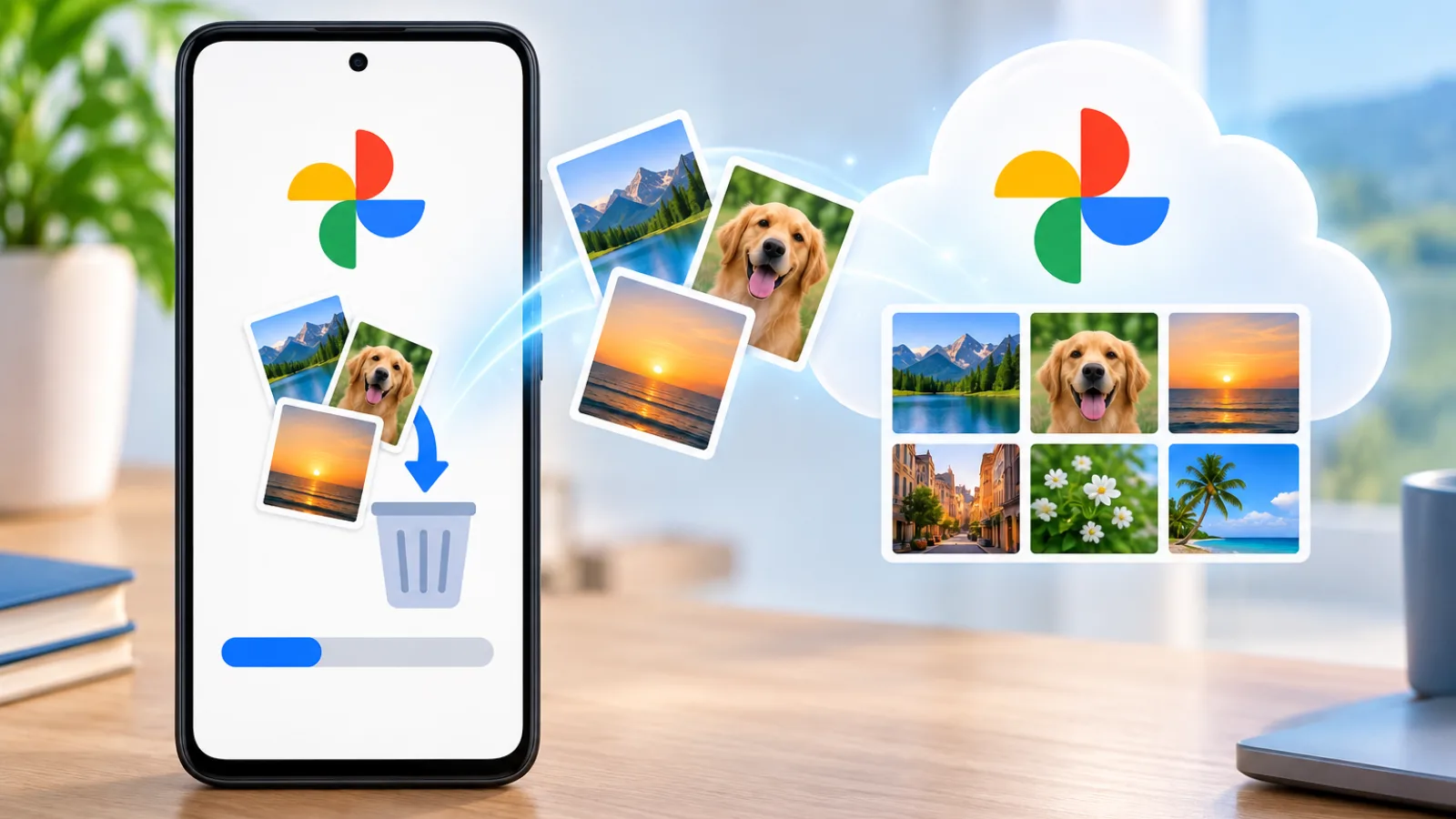
How to Transfer Google Photos to Another Account Without Losing Photos
Partner Sharing can copy backed-up Google Photos to another Google Account without downloading everything first—but saving, storage, Locked Folder and missing-content rules matter before you delete the old account.
Information checked on:

Key takeaways
- Partner Sharing plus Save to your account is the practical Google-native cloud-to-cloud method for a large personal library. [1–3]
- Only backed-up source photos and videos participate, so device-only items must be found and handled separately. [1–4]
- Accepting the invitation is not enough: set Save to your account to All photos before considering source cleanup. [1–3]
- Locked Folder and some backed-up Android other-app content need separate checks; Partner Sharing is not a full account clone. [1–5]
- Google guarantees the destination storage exemption only while the partner continues sharing the saved items. [1–3][6]
Which Google Photos transfer method should you use?
Google Photos does not provide a generic button that transfers ownership of an entire personal Photos account. The practical Google-native workflow is old account → Partner Sharing → new account → Save to your account → All photos. [1–3]
| Goal | Best method | Main limitation |
|---|---|---|
| Copy a large personal Photos library without downloading everything | Partner Sharing + Save to your account | Not a guaranteed clone of every Google Photos organizational feature |
| Transfer selected photos only | Shared album or manual sharing | More manual |
| Keep an independent offline archive | Google Takeout | Requires export/download and possibly re-upload |
| Move photos outside Google Photos | Google Takeout or a supported transfer method | Destination behavior varies |
| Delete the old Google Account after migration | Partner Sharing can help, but verify everything first | Storage, private items and organization require separate checks |
This copies eligible photos; it does not merge the accounts or transfer ownership.
What Partner Sharing can—and cannot—copy
Partner Sharing works with one Google Account partner at a time. It can share all backed-up photos, photos from a chosen date, or photos containing selected people where those filters are available. For a full-library migration, choose All photos: Google says Face Groups are not perfect, and wrong item dates can affect date filtering. The feature does not guarantee recreation of albums or every account-specific Photos feature. [1–3]
Step 1 — Verify the old account is fully backed up
Partner Sharing includes backed-up items. It does not make device-only photos eligible merely because they appear in the phone’s gallery or Google Photos app. [1–4]
Before sharing, confirm the old account says Backup complete. Spot-check recent photos, older years and important videos; check critical items individually under their details. Review device folders that may not be selected for backup, including screenshots and messaging-app media. [4]
If cloud removal is also part of the plan, Google Photos Undo Backup is a different Android workflow. Do not use it before migration unless you understand that only backed-up items participate in Partner Sharing.
Step 2 — Start Partner Sharing from the old account
On Android, Google’s current route is profile picture → Photos settings → Sharing → Partner sharing. On iPhone and iPad, open profile picture → Google Photos settings → Sharing → Partner sharing. On a computer, open Google Photos settings and choose Sharing → Partner sharing. [1–3]
Select the destination Google Account and choose All photos unless a partial copy is intentional.
Android includes an Include content from other Android apps setting. Other-app items are not necessarily included by default, even when backed up. Verify it rather than assuming screenshots or messaging-app media will transfer. Google’s iPhone/iPad help directs users to a computer to change this Android-content setting. [1–3]
Step 3 — Accept the invitation in the new account
Sign in to the destination account. In Google Photos, open Updates, view the Partner Sharing invitation, and accept it. [1–3]
Acceptance gives the destination account access to the shared view. Partner Sharing view is not the same as a saved destination copy. Complete the next step before considering any source deletion.
Step 4 — Set Save to your account to All photos
In the destination account, open Partner Sharing settings and choose Save to your account → All photos. Google labels the iPhone/iPad control Save to your photos, but it serves the same documented save decision. [1–3]
Saved photos can appear in the destination’s Photos view, search and Memories. If the source later deletes an item, it leaves Partner Sharing, but a copy saved beforehand can remain in the destination. Source edits, deletions or moving the original into Locked Folder do not affect the saved partner copy. [1–3]
Large libraries may take time to become fully available. Google does not publish one universal processing time, so verify the result instead of relying on an arbitrary number of hours or days.
How to verify that photos were saved
Confirm Save to your account → All photos, then check old and recent dates, open important photos and videos, and test destination search. Search is not a complete inventory, so compare critical date ranges and review album organization separately.
Do not test a large migration by deleting a batch from the source. The source should remain intact until the destination, exclusions and storage plan have been checked.
Can you delete the old account’s photos after saving?
Google says a source-deleted photo disappears from Partner Sharing, but a destination copy saved beforehand can remain. This supports eventual cleanup only after the migration, storage and excluded/private content are verified. Save to your account does not transfer ownership. [1–3]
What happens if Partner Sharing stops?
Already saved photos remain after a partner is removed. But Google guarantees the recipient storage exemption only while the source continues sharing the items, and it does not publish one quota-recalculation timetable for every scenario. Ensure the destination has enough storage before sharing ends. [1–3][6]
What can Partner Sharing miss?
- Unbacked photos: Device-only items are not included. Gallery visibility is not proof of completed backup. [1–4]
- Locked Folder: Items are not shared while they remain there. Audit it separately; moving sensitive items out changes their privacy state. Review Google Photos Locked Folder backup and recovery first. [5]
- Android other-app content: Verify Include content from other Android apps and check screenshots, downloads and messaging-app folders separately. [1–3]
- Albums and organization: Partner Sharing is not a guaranteed clone of album organization. Verify important albums separately.
- Face-group and date filters: Google warns that Face Groups are imperfect and wrong dates can affect filtering. Use All photos for a full migration. [1–3]
Storage ownership and quota
While the source partner continues sharing an item, Google says its saved destination copy does not count against the recipient’s storage. That exemption is conditional. It is not a promise of free storage forever or unlimited storage. [1–3][6]
If the goal is to delete the old account, check the size of the source library and the destination’s available Google Account storage first. Do not treat Partner Sharing as a quota workaround.
What about photo quality and metadata?
Partner Sharing operates on backed-up Google Photos items. Google’s help does not guarantee that every label, grouping, comment, favorite, edit state or other account-specific detail is recreated identically, nor does it document a special “original quality transfer” mode for this workflow.
Partner Sharing vs Google Takeout
| Feature | Partner Sharing | Google Takeout |
|---|---|---|
| Requires downloading the entire library | No | Usually yes for a local migration |
| Cloud-to-cloud within Google Photos | Yes, through sharing and saving | Not the same workflow |
| Creates an offline archive | No | Yes |
| Best for a new personal Google Photos account | Usually easier | More manual |
| Useful outside Google Photos | Limited | Yes |
| Full account or album clone guaranteed | No | No |
Google Takeout creates an export without deleting the original data. An archive may omit changes made between the request and its creation, and re-upload is not guaranteed to recreate every Photos organizational feature. Use it for an offline archive, files outside Photos or an added safety copy. [7]
What if you are deleting the old Google Account?
Use a conservative sequence:
- Complete and verify source backup.
- Start Partner Sharing with All photos.
- Accept the invitation in the destination account.
- Set Save to your account → All photos.
- Audit missing, device-only and private content.
- Verify the oldest, newest and random dates.
- Check critical videos.
- Review important albums separately.
- Confirm the destination has enough storage.
- Consider a Google Takeout archive for irreplaceable content.
- Only then consider source deletion or account closure.
Deleting the Google Account is broader than Photos cleanup; this workflow does not verify Gmail, Drive or other Google services.
Migration safety checklist
- Source backup says Backup complete.
- Partner Sharing is set to All photos.
- Destination is set to Save to your account → All photos.
- Android other-app folders are checked.
- Locked Folder is checked separately.
- Key albums and organization are reviewed.
- Old, new and random dates are verified.
- Important videos open in the destination.
- Destination storage is sufficient if the sharing exemption ends.
- An optional Takeout archive exists for irreplaceable content.
- Source deletion waits until verification is complete.
FAQ
Can I transfer all Google Photos to another Google Account?
Use Partner Sharing with All photos, then Save to your account → All photos. It covers backed-up items, not a guaranteed clone of albums, Locked Folder or every Photos feature. [1–5]
Can I transfer Google Photos without downloading them?
Yes. Partner Sharing and saving work cloud-to-cloud inside Google Photos. Google Takeout is the separate export/download route. [1–3][7]
Does Partner Sharing actually save photos to the new account?
Yes, after the destination enables Save to your account. Accepting alone is not the same as saving. [1–3]
What happens if I delete photos from the old account afterward?
They leave Partner Sharing, but copies saved beforehand can remain in the destination. Verify before deleting. [1–3]
What happens if I stop Partner Sharing?
Saved photos remain, but the storage exemption is guaranteed only while the source continues sharing them. [1–3][6]
Do saved Partner Sharing photos use storage?
Not while the source continues sharing them, under Google’s documented rule. That exemption is conditional. [1–3][6]
Will the photos use storage after the old account is deleted?
Google’s guarantee ends with continued sharing; no exact recalculation time is promised. Plan enough destination storage. [1–3][6]
Does Partner Sharing transfer albums?
No full recreation is guaranteed. Verify important albums separately.
Does Partner Sharing transfer Locked Folder photos?
No while the items remain in Locked Folder. Google requires an item to be moved out before it can be shared, which changes its privacy state. [5]
Does it transfer screenshots and WhatsApp or other-app photos?
Only when backed up and included by the current setting. Check Include content from other Android apps. [1–4]
Do both accounts keep the photos?
Yes, if the source retains its originals and the destination saves copies. Ownership is not moved. [1–3]
Can I delete the old Google Account after the transfer?
Only after verifying saved items, exclusions, organization and storage. Partner Sharing alone is not proof of a complete migration.
Should I use Google Takeout instead?
Use Takeout for an offline archive or files outside Photos. Use Partner Sharing for a cloud-to-cloud copy into another personal Photos account. [1–3][7]
Does Takeout delete my old photos?
No. Google says exporting or downloading data does not delete it from Google’s servers. [7]
Will photo quality or metadata change?
Google’s Partner Sharing help does not promise that every Photos-specific organizational detail, editing state or account feature will migrate identically. Avoid assuming a perfect account clone or a special quality guarantee.
Sources & Verification
Information checked against current official Google documentation on 11 October 2026 (UTC). DECODISTA did not independently test a large-library transfer or account deletion. Google’s current dedicated Partner Sharing documentation was treated as controlling for the Android other-app setting.
Official Google Photos sources
- Google Photos Help — Set up Partner Sharing — Computer
- Google Photos Help — Set up Partner Sharing — Android
- Google Photos Help — Set up Partner Sharing — iPhone & iPad
- Google Photos Help — Back up photos & videos — Android
- Google Photos Help — Hide sensitive photos & videos in Locked Folder
- Google Photos Help — About your Google Photos activity & storage
Official Google Account source
- Google Account Help — How to download your Google data