iPhone Storage Full but iCloud Has Space? What's Actually Full and How to Fix It
A 200 GB iCloud plan does not give a 128 GB iPhone more internal storage. Learn which meter to check, when Optimize iPhone Storage helps, and what not to delete.
Information checked on:

Key takeaways
- Settings > General > iPhone Storage measures the phone. Settings > your name > iCloud measures the cloud. [1]
- An iCloud+ plan adds cloud allowance, not phone hardware storage. [1]
- Optimize iPhone Storage can keep original photos in iCloud and smaller local versions on your phone, when syncing works and iCloud capacity is sufficient. [2]
- Offload App removes an app but normally preserves its documents and data; Delete App removes the app and associated data. [3]
- With iCloud Photos on, deleting a photo from Photos deletes it from the shared synced library, not only the phone. [4]
- If iCloud is full instead, new iCloud Photos uploads and backups may stop. That requires a different solution. [5]
Why extra iCloud space doesn't increase iPhone storage
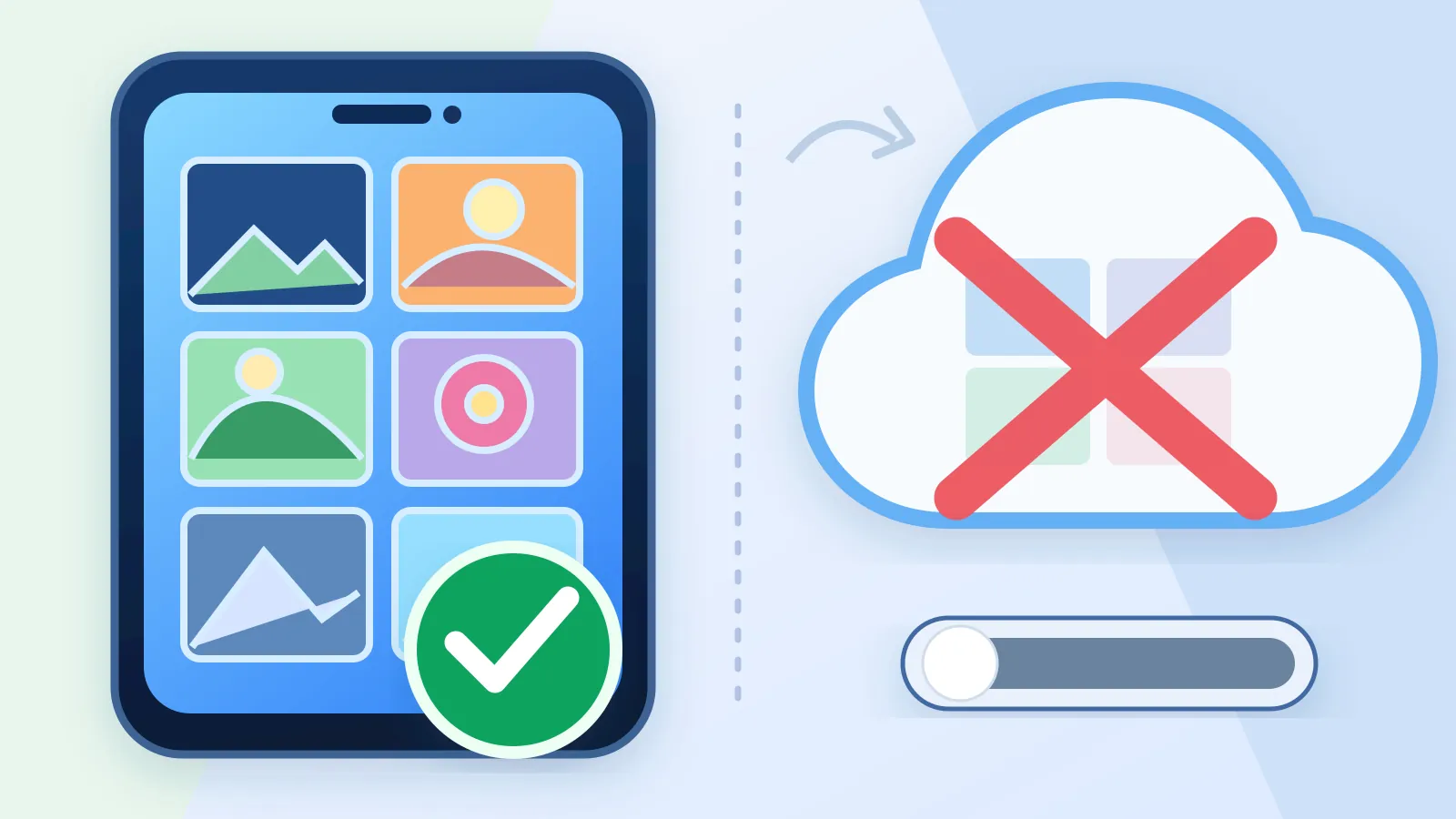
iPhone storage and iCloud storage are two different limits. The first is physical space built into your iPhone, used for apps, downloaded files, photos and system data. The second is cloud capacity used by services including iCloud Photos, backups and iCloud Drive. Buying more iCloud storage does not increase your iPhone's built-in capacity. [1]
If the iPhone is full but iCloud has room, consider Optimize iPhone Storage for a verified, fully synced iCloud Photos library; remove unneeded downloads; or Offload App for apps you rarely use. Deleting photos in a synced library is not a safe shortcut. [2][3][4]
Step 1: Identify which storage meter shows full
Open two screens; their numbers answer different questions. [1]
| Check | Settings path | Space it measures |
|---|---|---|
| iPhone storage | Settings > General > iPhone Storage | Internal device capacity used by apps, downloaded media and other local data |
| iCloud storage | Settings > your name > iCloud > Storage (or Manage Storage) | Cloud capacity for iCloud Photos, iCloud Drive, backups and supported app data |
Case A: iPhone full, iCloud has room. You need to reduce local data while preserving what matters. Optimizing Photos or offloading unused apps may help. Buying more cloud storage alone usually does not solve this.
Case B: iCloud full, iPhone has room. You need to manage cloud usage or upgrade the iCloud plan. Apple says a full iCloud account can stop device backups and new photo uploads. [5]
Case C: Both full. Treat this as two separate capacity problems. Make an independent archive before attempting destructive cleanup.
Step 2: Identify your largest local categories
In Settings > General > iPhone Storage, wait for the storage summary to populate. Apple shows recommendations and a breakdown of app usage. Open individual apps to inspect their storage contribution. [3]
Focus on large, replaceable downloads before touching irreplaceable content:
- Review downloaded movies, podcasts and offline music; remove only downloads you can obtain again.
- Review unneeded files in the Files app, including On My iPhone and app-managed downloads.
- Identify rarely used apps and decide whether Offload App is appropriate.
- Look at Photos only after checking whether your library is synced and safely recoverable.
There is no universal amount of space that any one step will free. The actual breakdown on your device determines the right priority.
Step 3: Optimize Photos—do not delete synced originals
Apple's Optimize iPhone Storage can keep full-resolution photos and videos in iCloud Photos and use smaller, space-saving local versions when necessary. The feature is designed to reclaim device space; it does not lower the amount those cloud originals consume. [2]
Before enabling it:
- Confirm you are signed into the intended Apple Account.
- Confirm iCloud Photos syncing is enabled and that important photos have uploaded.
- If possible, inspect important items at iCloud Photos while signed into the same account; seeing a thumbnail on the phone does not prove the cloud upload has completed.
- Check that iCloud has sufficient room to hold the library.
Apple's menu labels can vary with software updates. Apple's published starting route is Settings > your name > iCloud > Photos, where you can enable syncing and choose Optimize iPhone Storage. Follow the options actually shown on your device. [2]
Optimization is not an instant deletion command. The phone can retain recent or frequently used originals and optimize more files when it needs room. Give sync and optimization time to finish; do not promise an immediate specific number of gigabytes. [2]
Do not use Download and Keep Originals as a strategy to clear local space: it asks the device to retain full-size files and can increase storage use. [2]
Step 4: Offload unused apps before deleting their data
Open Settings > General > iPhone Storage, choose a large app and examine your options. [3]
| Action | What happens | When it fits |
|---|---|---|
| Offload App | Removes the app while keeping its documents and data | An app you rarely use but may want to reinstall with its local data |
| Delete App | Removes the app and its associated data | An app and content you no longer need; back up anything important first |
Offloading does not guarantee removal of all space shown for an app, because saved documents and data remain. Deleting may remove the only copy of material stored solely inside that app. [3]
On supported systems, Apple also offers an Offload Unused Apps option in App Store settings. Use it only if you want the system to manage unused app installs automatically. [6]
Step 5: Review messages, downloads and large files
If you rarely download photos but frequently save videos for offline use, deleting Photos may not help much. Apple lists downloaded videos, Messages attachments, Files and unused apps as common storage candidates. [6]
Review your largest categories individually. Save sentimental videos, voice recordings or document attachments somewhere safe before removal. A document stored only under On My iPhone is not necessarily duplicated in iCloud Drive.
If storage is largely marked System Data, first inspect the rest of the breakdown and allow iOS to manage caches and temporary files. Avoid third-party cleaner claims that promise a specific “one-tap” reduction; Apple documents that temporary and re-downloadable data can be managed automatically. [3]
Step 6: Understand the deletion trap with iCloud Photos
If iCloud Photos is turned on, Photos is a synchronized library. Apple says deleting an item on one device also deletes it from other devices using that same library. This is not equivalent to using Optimize Storage or offloading a local app. [4][5]
Deleted items usually have a Recently Deleted recovery window, but Apple documents exceptions for accounts over their cloud storage limit; do not rely on that window as your only backup. [4][5]
Safer checklist before touching irreplaceable photos:
- Confirm upload/sync status on the correct Apple Account.
- Verify the photos on another independent destination, such as an exported archive on a computer or external drive.
- Open a few exported images and videos from that destination.
- Keep the independent archive separate from the actively synced iCloud Photos library.
- Only then consider removing unwanted duplicates or unnecessary files—with a clear understanding of what is synced.
For more nuance, read Does iCloud Backup Include Photos? It Depends on iCloud Photos and How to Turn Off iCloud Photos Without Losing Photos on Your iPhone.
Step 7: If iCloud is full but iPhone is not, use the other solution
If the iCloud meter is at quota, Apple says new photos and videos cannot upload to iCloud Photos, backups may stop, and other iCloud apps may no longer stay current. [5] In this case, optimizing local photos does not make the cloud capacity larger.
Inspect Settings > your name > iCloud > Storage to see which services are consuming the cloud plan. Review old backups, duplicate data and large cloud files cautiously. Before deleting an old device backup, confirm that you no longer need it for restoration. Before deleting iCloud Photos, remember that changes synchronize to other devices. [5]
Upgrading iCloud+ can relieve a genuine cloud quota problem; it still won't add local gigabytes to your iPhone.
A practical decision table
| Your actual problem | Try first | Avoid |
|---|---|---|
| iPhone is full; iCloud has room | Check app/download usage; consider optimized Photos sync after verification | Buying more iCloud space expecting extra physical capacity |
| iCloud is full; iPhone has room | Identify cloud usage, preserve backups, consider upgrading cloud storage | Deleting local apps expecting cloud usage to fall |
| Photos use most local space | Confirm upload and enable Optimize iPhone Storage where available | Deleting synced photos solely to keep the cloud copies |
| A rarely used app consumes a lot | Examine Offload App versus Delete App | Assuming both options preserve data equally |
| Both meters are full | Preserve an independent archive; solve each quota separately | Bulk deletion without checking what syncs |
FAQ
Why is my iPhone full when I pay for 200 GB of iCloud?
Your iPhone still has its original fixed device-storage capacity. iCloud+ is cloud capacity, not an upgrade of built-in storage. [1]
Does iCloud automatically remove photos from my iPhone?
Not every full-resolution file disappears immediately. With iCloud Photos and Optimize iPhone Storage enabled, iOS may replace selected local originals with smaller versions as space is needed. Uploads and optimization must be allowed to complete. [2]
Can I delete photos from the iPhone but keep them in iCloud Photos?
Ordinary deletion in a synced iCloud Photos library also deletes them from iCloud and connected devices. Use Apple's documented optimization workflow instead, after verifying your cloud and independent copies. [2][4]
Will deleting an app always save all the storage listed for it?
Not necessarily. Offloading retains app documents and data; deletion removes related data and can erase something you needed. Inspect the app detail screen. [3]
Should I pay for more iCloud storage to clear System Data?
Not on that basis alone. System Data is local storage; purchasing additional iCloud space does not directly enlarge the phone. Examine device storage and Apple's built-in management suggestions first. [1][3]
Sources & verification
Documentation reviewed November 11, 2026 (UTC). This draft is based on Apple documentation, not hands-on testing or captured screenshots. Interface labels can vary by iOS version.