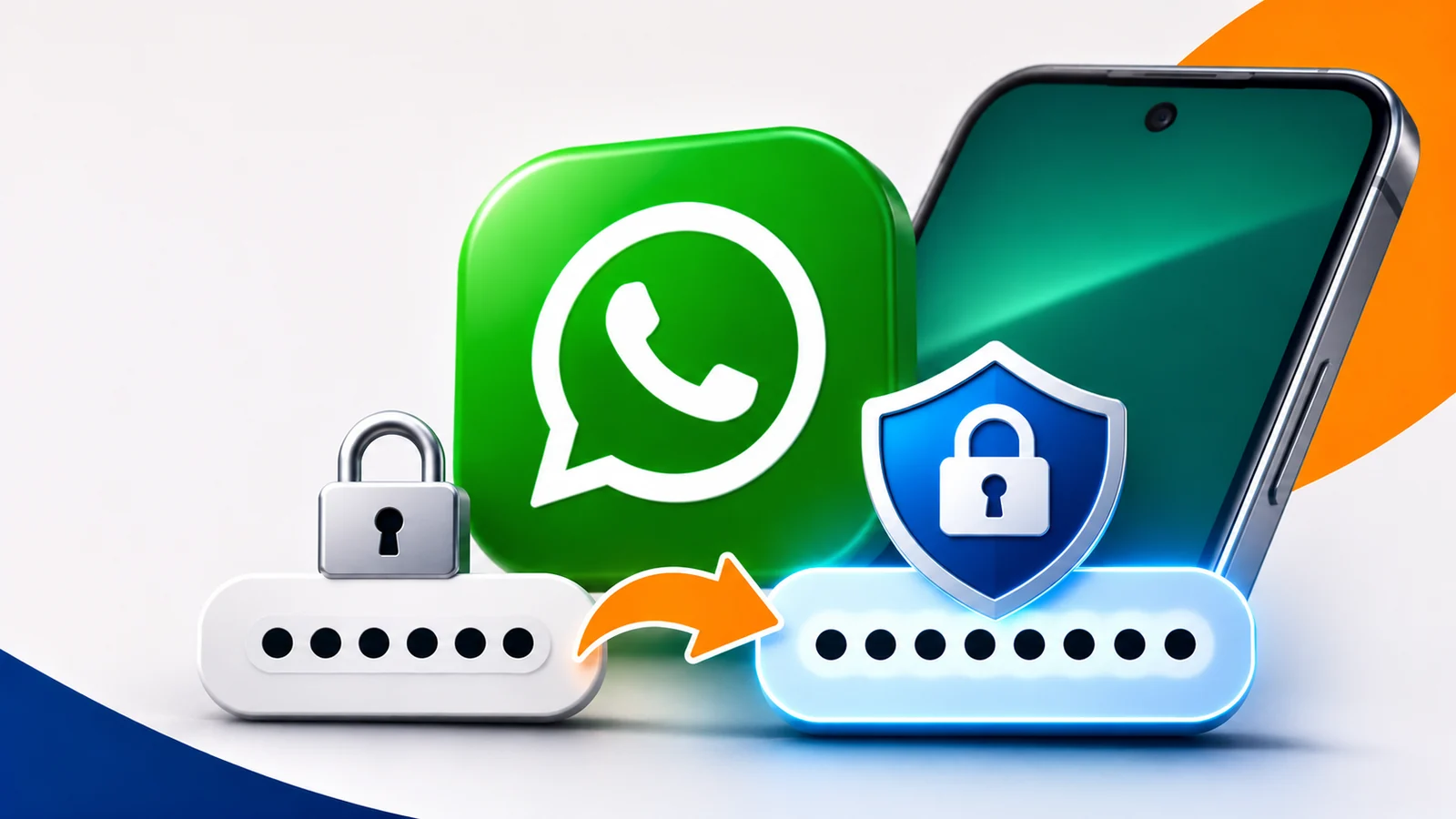
WhatsApp Account Password: How to Replace Your 6-Digit PIN
WhatsApp is upgrading its two-step verification PIN to a longer password. Here is where to look for the setting, what to do if it is missing, and how account recovery differs from encrypted-backup recovery.
Information checked on:
Key takeaways
- Meta confirmed the move from a six-digit PIN to a longer password on August 25, 2026. [1]
- WABetaInfo reported an initial minimum of eight characters, including a letter and a number; follow the rules shown in your app. [2]
- The account-password option is being rolled out, so some users may still see only the old PIN settings. [2]
- Forgotten passwords, forgotten PINs, and compromised accounts can require different recovery steps. [3][4][5]
- Changing a password alone will not remove someone already using a compromised WhatsApp account. [5]
What changed in WhatsApp two-step verification?
Meta announced on August 25, 2026 that WhatsApp was upgrading its extra account-verification credential from a six-digit numeric PIN to a longer password that can include letters, numbers and special characters. This protection is designed to make unauthorized account registration harder even if someone obtains a one-time phone-number verification code. [1]
An account password is not the code sent by SMS, a password for opening the WhatsApp app, or the password protecting an end-to-end encrypted chat backup.
A longer, unique password offers many more possible combinations than a six-digit PIN. That does not prove WhatsApp's earlier PIN system could be easily brute-forced: actual security also depends on the platform's verification and attempt-limiting controls.
How to replace your WhatsApp PIN with an account password
The most reliable starting point is WhatsApp → Settings → Account. WhatsApp's Help Center confirms that existing two-step verification PINs can be upgraded to passwords, while WABetaInfo reported a dedicated account-password setting during the rollout. [2][3]
On Android
- Open the official WhatsApp app.
- Open Settings, usually from the three-dot menu.
- Select Account.
- Look for Password. If it appears, select the option to create or upgrade your account password.
- Enter a new password that meets the requirements shown, confirm it and complete the app's save or verification step.
- Review the recovery email associated with your account.
If Password does not appear, check Account → Two-step verification for an upgrade option. Do not disable an existing PIN just to force a different menu to appear.
On iPhone
- Open WhatsApp and go to its Settings area (the entry point may differ by app version).
- Select Account.
- Look for Password or the relevant upgrade controls under Two-step verification.
- If offered, create and confirm the password and finish the on-screen verification.
- Check that your recovery email remains accessible.
Interface note: These steps are based on WhatsApp's documentation and published rollout reporting, not on DECODISTA testing the feature on physical Android and iPhone devices. Menu names and availability can change. [2][3]
What are the password requirements?
WABetaInfo's August 26 rollout report stated that a new account password initially required at least eight characters, one letter and one number. Meta confirmed that the feature supports alphanumeric passwords and special characters, but did not give a precise minimum in its original announcement. [1][2]
Follow the requirements displayed by your version of WhatsApp. For better security, choose a longer password that is unique to WhatsApp and store it in a reputable password manager. Avoid names, birthdays, phone numbers and reused passwords.
Why can't I see the Password option?
There are three practical things to check:
- Availability: WABetaInfo reported a gradual Android and iOS rollout. The August reporting does not confirm that every account has received the feature by November 2026. [2]
- App version: Check Google Play or Apple's App Store for an official WhatsApp update. Updating does not guarantee immediate account-level availability.
- Existing settings: Look under Account → Two-step verification if no dedicated Password option appears.
Keep your existing two-step verification enabled. There is no verified method to force the rollout, and modified WhatsApp apps or unofficial APKs can introduce security risks.
Forgot the password? Start with your situation
Still signed in: Open Settings → Account and look for the available password-management option. WhatsApp documents changes to account passwords through its account settings. [3]
Trying to register or sign in: Use the recovery choices actually shown in WhatsApp. These may include a recovery email, SMS or voice verification, depending on the account and security situation. WABetaInfo describes recovery-email and phone-number routes for the new password. [2][4]
Forgot the older six-digit PIN: Use WhatsApp's PIN-reset instructions. Do not assume that the rules for resetting an older PIN, including any waiting period, apply identically to every new account-password recovery attempt. [4]
Offered an account reset: Read WhatsApp's warning before confirming. A reset may be irreversible or affect messages and account data. First check your access to a compatible backup and the credentials needed to restore it.
WhatsApp's official recovery page is the safest reference when the on-screen options differ: Can't remember password. [4]
What if someone has already taken over your account?
Changing a password does not by itself remove a person who already controls a compromised account. WhatsApp specifically directs users to recover the account first. [5]
If your account has been taken over:
- Open the legitimate WhatsApp app and begin the account recovery or re-registration process.
- Verify control of your phone number using the registration method WhatsApp provides.
- Complete any further security challenges; additional restrictions may apply.
- After regaining control, review Linked devices, account verification and recovery information.
- Warn contacts if someone used your account to impersonate you.
Never send a registration code, recovery link or account password to a stranger claiming to be support. DECODISTA also explains fake tech-support scams and verification-code theft.
For official instructions, see How to recover a compromised account. [5]
Account password vs passkey vs encrypted-backup password
| Security feature | Purpose |
|---|---|
| Account password | Additional credential for WhatsApp two-step account verification |
| Registration code | Helps verify control of a phone number |
| Passkey | Supports cryptographic sign-in using an eligible device and its unlock method |
| Encrypted-backup password or key | Protects an end-to-end encrypted chat backup |
| App lock | Restricts local access to WhatsApp on supported devices |
Meta also introduced support for multiple WhatsApp passkeys, managed where available under Settings → Account → Passkeys. A passkey and the new account password are separate forms of protection. [1]
The distinction matters most for backups. Your new account password will not automatically decrypt an encrypted chat backup. WhatsApp has separate recovery limits for encrypted-backup passwords and keys. Do not reset your account assuming your two-step verification password will restore inaccessible chat history. [6]
Five ways to stay protected
- Create a unique, strong password if the new option appears.
- Keep access to your recovery email and protect that email account.
- Review unfamiliar sessions under Linked devices.
- Never share one-time registration codes or approve unexpected sign-in requests.
- Install official WhatsApp updates and retain an accessible recovery route.
FAQ
Is the new WhatsApp account password available to everyone?
Not necessarily. The rollout was gradual according to WABetaInfo. The current options shown in your account are the best guide. [2]
Where is the Password setting?
Start with WhatsApp → Settings → Account. Check for Password or an option under Two-step verification. [2][3]
Does the password replace the SMS code?
No. WhatsApp can still request phone-number verification. The account password adds another layer. [1][2]
Can I recover an account password without email?
Other verification methods may be offered, but their availability depends on your account and recovery state. Follow the current WhatsApp recovery screen. [2][4]
Will a password change sign out someone who hacked my account?
No. Recover the compromised account through WhatsApp's official process and then review connected devices and security settings. [5]
Is this the same as the encrypted-backup password?
No. The encrypted-backup password or key protects a separate backup system. [6]
The bottom line
WhatsApp's account-password upgrade is a meaningful improvement to two-step verification, but it is not a universal sign-in replacement or a shortcut through account recovery.
If the option is available, set a strong password and review your recovery email. If the option is missing, keep your existing PIN protection enabled. And if your account has already been compromised, use WhatsApp's recovery process rather than assuming a password change will solve the problem.
Sources & Verification
Information checked: November 10, 2026 (UTC).
- Meta Newsroom — New Account Security Features for WhatsApp, August 25, 2026. Official announcement of longer account passwords and multiple passkeys.
- WABetaInfo — WhatsApp is rolling out the account password feature, August 26, 2026. Independent reporting on initial requirements, account settings, recovery and rollout.
- WhatsApp Help Center — How to manage two-step verification settings. Official confirmation of PIN-to-password upgrades and account-security controls.
- WhatsApp Help Center — Can't remember password. Official recovery entry point.
- WhatsApp Help Center — How to recover a compromised account and Account security tips. Official account-recovery guidance and the limitation of password changes.
- WhatsApp Help Center — Can't remember password for encrypted backup. Backup-specific recovery limitations.
Editorial disclosure: This is a documentation-based guide. DECODISTA did not test the account-password setup or recovery process on physical Android or iPhone devices. Menu labels, available verification methods and account eligibility may change; readers should follow the official WhatsApp interface.