Fake CAPTCHA Scams: How ClickFix Works and How to Stay Safe
A website asks you to prove you're human, then tells you to run a command. Learn how ClickFix works, how to spot a fake CAPTCHA, and how to respond on Windows or Mac.
Information checked on:
Key takeaways
- ClickFix is an attack technique, not a single malware family or a normal CAPTCHA.
- An instruction to execute a system command to prove you are human is a serious warning sign.
- A fake prompt can appear on a compromised legitimate website as well as on a fraudulent site.
- Only viewing or clicking does not automatically mean malware executed; actually running a command changes the risk.
- If execution occurred, contain the device, secure affected accounts from a trusted device and investigate Windows or macOS.
- Research on TerminalFix, macOS ClickFix and ROMULUS describes separate campaigns, not a universal infection outcome.
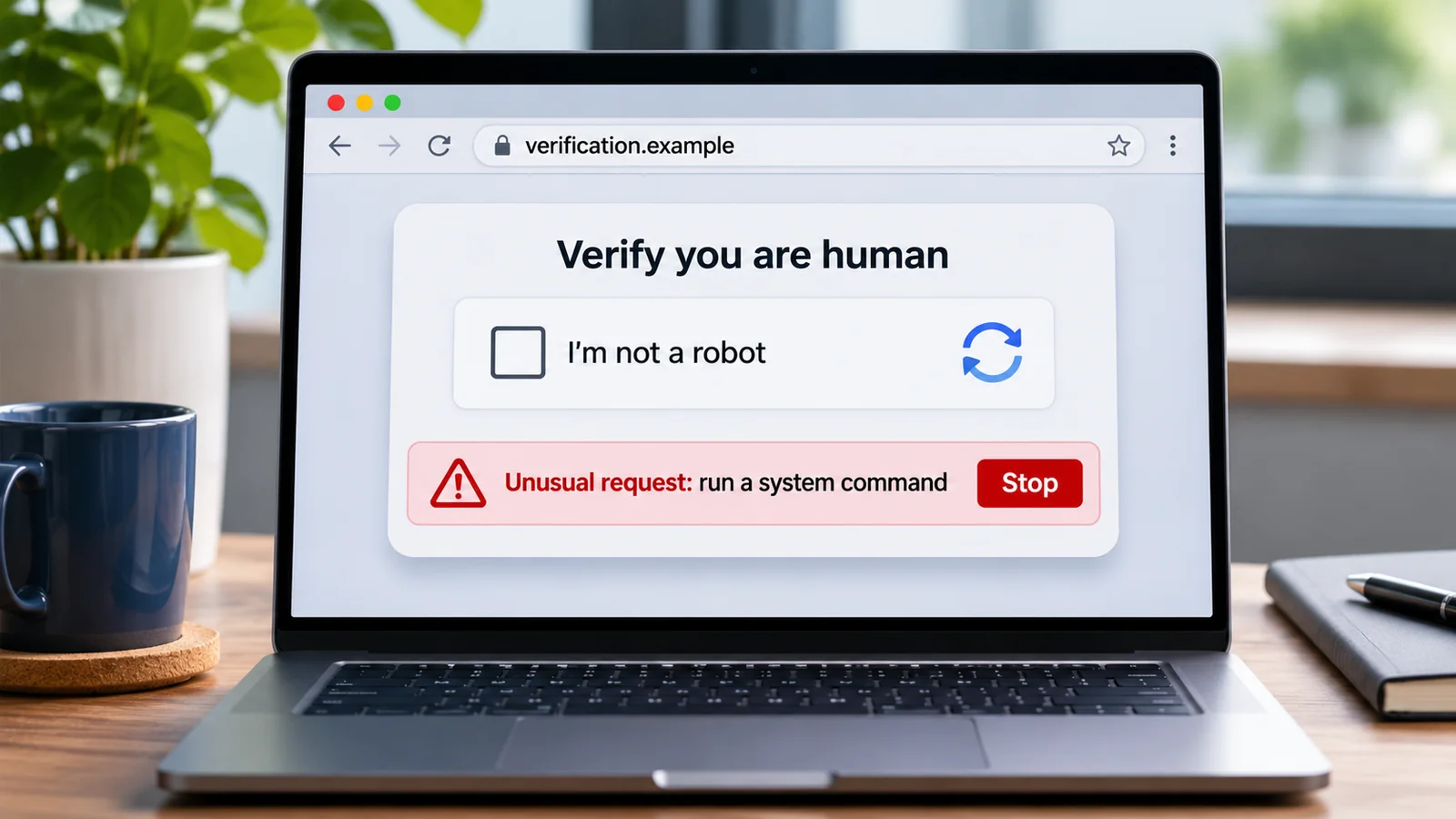
You open a website and see a familiar message: Verify you are human. There's a checkbox, a security symbol and an explanation that seems routine. But after you click, the page tells you to open Windows Run or Terminal, paste some text and execute it.
That is not how a legitimate CAPTCHA works.
You may be encountering ClickFix, a social-engineering technique that manipulates people into running attacker-supplied commands on their own devices.
It exploits a habit attackers understand well: when a website offers a quick fix to a problem it has just announced, some visitors follow the steps without questioning who wrote them. Security researchers have documented such prompts on compromised websites and in campaigns delivered through deceptive links. Investigations published in 2026 show that this approach continues to evolve.
Here's what the threat looks like, what doesn't necessarily mean infection and what to do if you have already run a command.
What is ClickFix?
ClickFix is a technique used to persuade someone to execute malicious instructions, usually under the pretense of completing verification, repairing a software error or accessing a file. It is not one particular virus. Different attackers use the same manipulation to deliver different malware.
A fake CAPTCHA is one popular disguise. Unlike a standard browser verification, the page might ask you to open Windows Run, PowerShell, Command Prompt or a macOS Terminal window. It may place text in the clipboard and tell you to paste and execute it.
Legitimate CAPTCHA challenges do not need visitors to run arbitrary operating-system commands. Some fake CAPTCHA pages use other approaches, including credential phishing or notification-permission prompts, so not every fake CAPTCHA should be called ClickFix.
Microsoft documented the broader ClickFix technique, distribution channels and investigated malware in its August 2025 security analysis.
How the scam works
1. The deceptive page appears. Attackers can create an imitation site, use malicious advertising or compromise an otherwise legitimate website. A familiar domain is not proof that every element displayed there is trustworthy.
2. It creates a verification problem. The page might imitate a legitimate security challenge, announce that verification has failed and offer a supposedly simple manual remedy.
3. It gives you a command. Instead of keeping the verification inside the browser, the instructions tell you to copy text and use a system utility to run it. A command may be difficult to understand by inspection, but you do not need to decode it to recognize the danger of taking instructions from an untrusted page.
4. Malicious activity may follow. If the command runs successfully, it can retrieve additional code, execute malware or enable unauthorized access. The results vary by campaign and by whether security controls stop later stages.
The page may look convincing. What separates the attack from routine verification is the attempt to make you perform an unsafe action outside the browser.
Real CAPTCHA versus fake CAPTCHA
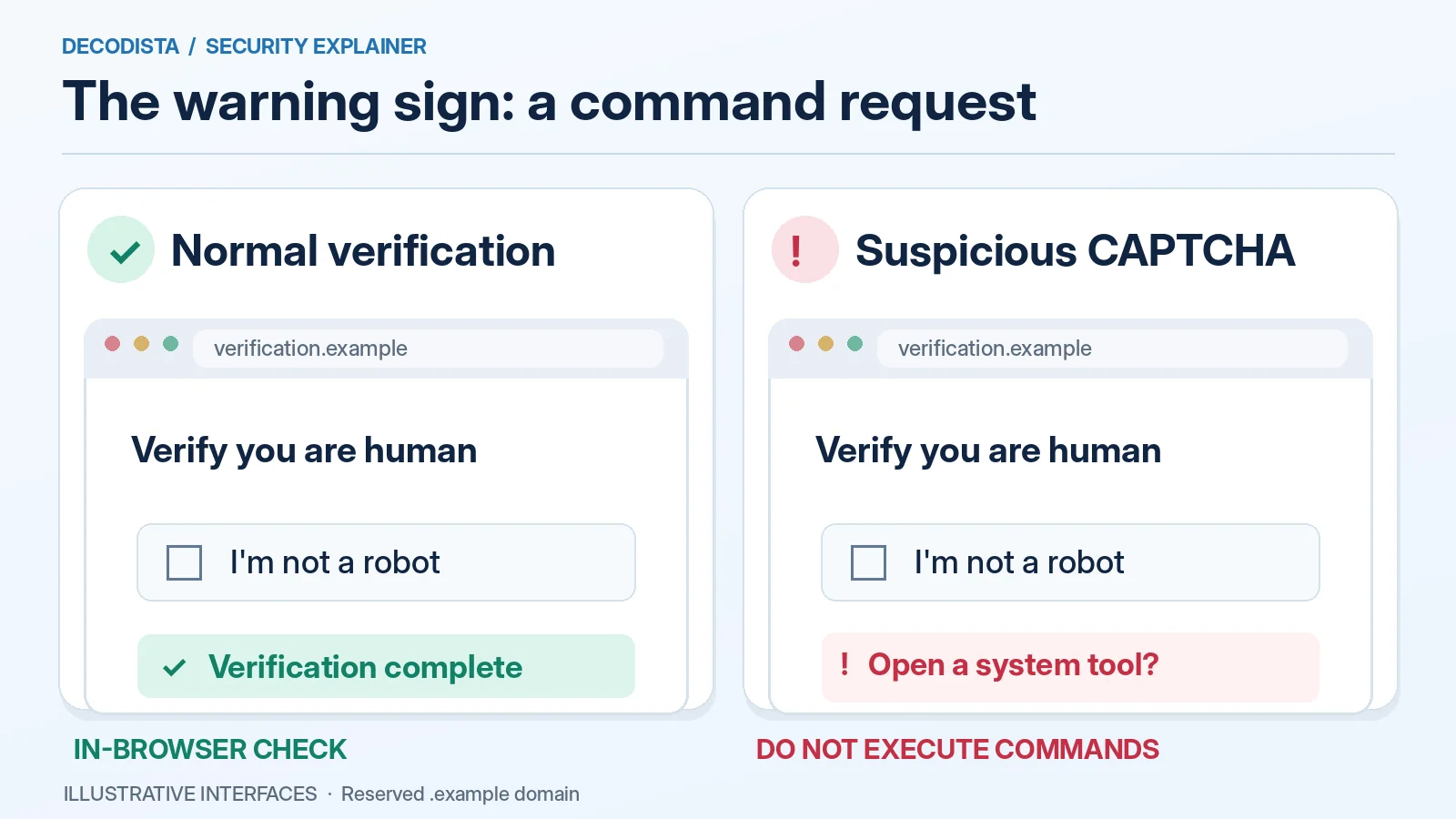
| Expected human verification | Suspicious instruction |
|---|---|
| Complete a checkbox, image challenge or browser-based check | Open Windows Run, PowerShell, Command Prompt or Terminal |
| Continue within the website's verification flow | Paste and execute unexplained text |
| No unrelated application installation | Install a special verifier, helper tool or extension |
| No requirement to disclose your account password | Supply credentials or unrelated security information |
| No need to disable protection | Turn off security controls to pass the supposed test |
These clues are not a mathematical fraud score. A fake page can imitate an ordinary checkbox convincingly, and a legitimate-looking website may be compromised. The instruction to run an arbitrary command is the strongest warning sign.
New Zealand's government-backed Own Your Online advisory from September 2, 2026 warned visitors about suspicious CAPTCHA-style prompts requiring keyboard commands or code execution.
Why security researchers are still investigating ClickFix in 2026
Three investigations help explain how the technique is changing. They concern separate campaigns, not one coordinated worldwide infection and not a measured global victim count.
TerminalFix: A fake check becomes a deeper intrusion
In research published August 28, 2026, Microsoft documented a campaign called TerminalFix. Compromised websites displayed fake verification challenges and directed visitors to use Windows Terminal or PowerShell.
In the investigated chain, the initial command led to additional malicious steps and an implant that could support remote network access. Researchers also discussed the wider risks that such access could create. The capability to do more harm must not be confused with proof that every possible follow-on action occurred in the observed case.
The practical lesson is simple: a seemingly minor verification step can start a serious intrusion.
macOS users can also encounter ClickFix
Windows is a common focus of ClickFix reports, but it is not the only platform. In August 2026 macOS research, Microsoft described look-alike websites using deceptive Terminal instructions and attempts to deliver information-stealing malware, including MacSync and Atomic Stealer.
This establishes macOS-targeted activity; it does not mean every Mac or every unfamiliar verification page carries those exact threats.
ROMULUS: One technique, different malware
In November 2026 research, Blackpoint Cyber examined ROMULUS-associated delivery chains and reported a remote-access trojan it named CNCMachineRMS, alongside other malware delivery activity.
The malware analyzed had capabilities associated with remote access and surveillance. Blackpoint noted it had not observed post-exploitation activity in its analyzed case. That limitation matters: a malware capability does not establish that it was used against every infected user.
ROMULUS illustrates how different malware families can sit behind similar social-engineering lures.
Five signs of an unsafe verification page
1. It wants you to open a command utility. A routine CAPTCHA has no reason to ask you to launch Run, PowerShell, Command Prompt or Terminal.
2. It invents a technical emergency. The page might insist a browser, document or security check is broken and must be fixed immediately. A page you did not seek out is not a reliable authority on repairing your computer.
3. It gives you mystery text to paste. Copying text does not ordinarily execute it, but pasting it into a command utility can be dangerous. Do not experiment with the supplied instructions.
4. It relies on a familiar logo. Colors, checkboxes and security symbols can all be imitated. Judge the requested behavior rather than the visual branding.
5. It requires unrelated software or permissions. A verification page demanding software installation, elevated rights or disabled protection needs independent scrutiny.
I clicked a fake CAPTCHA. Am I infected?
Not necessarily. The relevant question is what happened after you reached the page.
| What happened | What it means | What to do |
|---|---|---|
| You only viewed the page | No command execution is established | Close the page and avoid revisiting |
| You clicked the checkbox | Clicking alone does not prove infection | Stop when unexpected instructions appear |
| You copied suspicious text | Copying alone does not ordinarily run it | Do not paste the text into a command tool |
| You pasted text but did not intentionally execute it | Some tools can execute pasted input unexpectedly; the outcome is uncertain | Check whether anything ran and seek trusted help if unsure |
| You ran the command | The device may be compromised even without visible symptoms | Begin incident containment |
| You installed an app or entered credentials | There may be malware or account exposure | Investigate the device and protect the relevant accounts |
Other attacks can exploit browser vulnerabilities through different mechanisms. Such exploitation should not be conflated with ClickFix, whose defining feature is the user's manipulation into executing instructions.
What to do if you ran a suspicious command
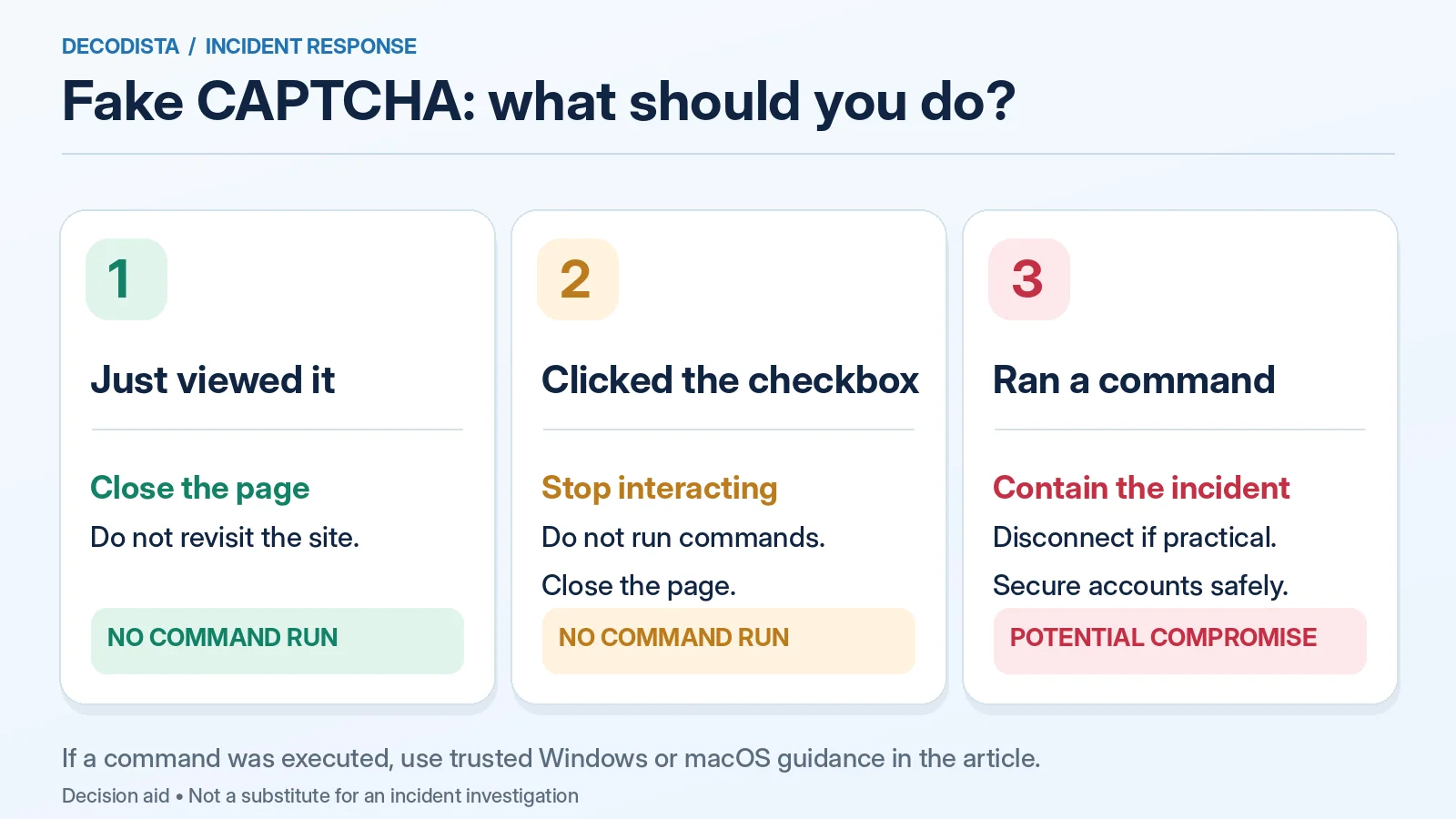
If you executed an untrusted command, do not wait for obvious symptoms. Use the following order.
First: Stop and contain the incident
Stop interacting with the page and do not run follow-up instructions that claim to reverse the command. If you suspect malware executed, disconnect the affected computer from Wi-Fi or other networks where practical.
On a work-managed device, notify your organization's security team immediately and follow its instructions before deleting files, restarting or resetting the computer. Investigators may need to preserve evidence.
Avoid using the affected device for additional sensitive activity.
Second: Secure important accounts from another trusted device
An information stealer could expose passwords, browser data or active sessions. Prioritize your main email account, financial services, cloud storage and password manager.
From a trusted device, change credentials that may be exposed; review recent sign-ins and connected devices; revoke unfamiliar sessions where supported; and enable suitable multifactor authentication. Changing a password does not always revoke every stolen session.
If you suspect Google Account compromise, DECODISTA's Gmail and Google account recovery guide explains the official recovery process and additional checks. Contact your bank or payment provider promptly if you see unauthorized transactions.
Third: Investigate the computer
Windows: Open the built-in Windows Security app through Windows, not through a link on the suspicious page. Review Protection History, update security intelligence when appropriate and run a suitable malware scan. Microsoft's Windows Security guide explains full scans and Microsoft Defender Offline. If a malicious command ran and the effects are uncertain, seek qualified help. A clean scan does not conclusively rule out every compromise.
Mac: Stop using the suspicious instructions, preserve the website address and note any downloaded files. Review unexpected applications and security notifications without deleting unknown system components at random. When appropriate, update macOS through its built-in settings. Apple's safely opening apps guidance describes protections such as Gatekeeper; those protections do not guarantee that an attacker-supplied Terminal command cannot cause harm. Seek trusted technical assistance if execution succeeded or the outcome is uncertain.
For serious or confirmed compromise, professional investigation and a trusted operating-system reinstall may be warranted. Simply deleting an unfamiliar file may not remove every component.
Fourth: Monitor and report
Preserve relevant messages, website information and transaction records. Report work incidents through the organization's security process; for personal incidents involving data theft or financial loss, consult the appropriate cybercrime or consumer-protection service in your country.
What about Android and iPhone?
Fake verification pages also appear in mobile browsing, but many mobile cases center on phishing, notifications or deceptive app downloads. They should not automatically be described as the same Windows or macOS command-execution attack.
Avoid supplying credentials, granting unrelated permissions or installing unfamiliar software because a web page requests it. Follow the device vendor's official security and recovery instructions.
Can antivirus stop ClickFix?
Security products can block known downloads, detect malicious scripts and interrupt parts of an attack. But ClickFix is designed around convincing a legitimate user to take action, sometimes through built-in system utilities.
No single product is a guarantee. Updated software, appropriate endpoint protection and skepticism toward unusual verification instructions provide complementary defenses.
For Chrome users, DECODISTA's Standard Protection versus Enhanced Protection guide explains what browser protection can and cannot do.
What organizations can do
Businesses should train staff to recognize verification pages that request command execution, limit unnecessary administrative privileges, restrict unapproved software execution where appropriate, maintain endpoint monitoring and provide a clear way to report suspicious prompts.
An employee who reports a concerning page promptly can help the security team identify a compromised service before an incident spreads.
FAQ
Is ClickFix a virus?
No. It is a social-engineering technique used to deliver different types of malicious software. The malware depends on the campaign.
Can clicking “I'm not a robot” install malware?
Clicking a checkbox alone does not prove infection. Many ClickFix attacks require a later step in which the victim runs a command; other kinds of website attack may work differently.
Why would a CAPTCHA ask me to use PowerShell?
That request is a strong warning sign. Legitimate human verification does not require you to execute an arbitrary PowerShell command.
Can ClickFix affect a Mac?
Yes. Researchers have documented Mac-targeted ClickFix activity involving deceptive Terminal instructions and information-stealing malware.
Can a legitimate website show a fake CAPTCHA?
Yes. Attackers can compromise a legitimate website and inject fraudulent verification content.
What if I copied a command but did not run it?
Copying text ordinarily does not execute it. Do not paste it into a command utility. If you are unsure whether anything executed, seek trusted assistance.
Should I reset my computer after viewing a fake CAPTCHA?
Not automatically. Viewing the page is different from executing code. Base your response on the actual actions and evidence of compromise.
Is a clean malware scan enough after running an unknown command?
Not always. A clean scan is useful evidence but does not rule out every sophisticated infection. Follow up when execution occurred and its effects remain unclear.
The bottom line
Fake CAPTCHA scams exploit the familiarity of online human-verification screens. ClickFix turns that familiarity into an attempt to make someone execute attacker-controlled instructions.
If a website tells you to open Run, PowerShell, Command Prompt or Terminal to complete a CAPTCHA, stop. You do not need to understand a command to recognize that a website should not be asking you to run it.
And if you already did, respond to the action that actually occurred—not merely to how convincing the page looked.
Sources & Verification
DECODISTA reviewed the following primary research and official safety information as of November 23, 2026:
- Microsoft Threat Intelligence: Think before you Click(Fix) — August 21, 2025; ClickFix mechanism and delivery.
- Microsoft Security Research: TerminalFix — August 28, 2026; multistage Windows intrusion.
- Microsoft Security Research: macOS ClickFix — August 5, 2026; macOS-targeted lures.
- New Zealand Own Your Online: ClickFix warning — September 2, 2026; public-safety guidance.
- Blackpoint Cyber: CNCMachineRMS and ROMULUS — November 2026; malware research, with caveats.
- Microsoft Support: Virus & Threat Protection — Windows scanning options.
- Apple Support: Safely open apps on your Mac — Mac software trust and built-in protection.
Editorial disclosure: This is a documentation-based security explainer. DECODISTA did not execute malicious code, test live attack infrastructure or independently investigate the victims described in third-party reports. All illustrated interfaces use fictional examples; they are not documentary screenshots. Results of particular campaigns are attributed to their researchers, and potential capabilities are distinguished from observed actions.